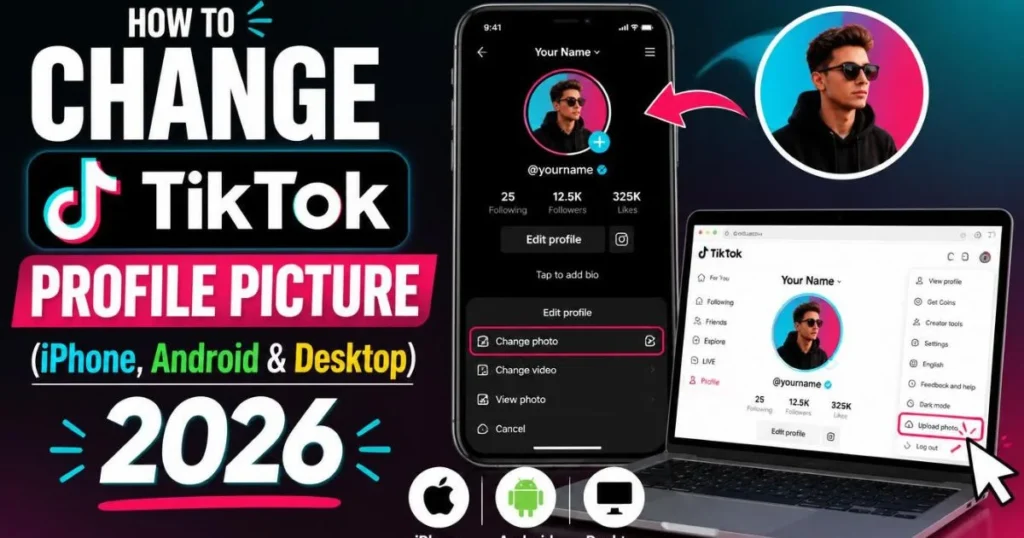
Step-by-step guide to change your TikTok profile picture on iPhone, Android, and desktop. Also covers how to remove a TikTok profile picture and fix common issues.
How to change tiktok profile picture
⚡ Quick Steps — Change TikTok Profile Picture
- Open TikTok → tap Profile (bottom right)
- Tap Edit Profile
- Tap your current photo → Upload Photo
- Choose from camera roll → crop to circle → Confirm
- Tap Save — done, live instantly
Takes about 30 seconds. Full step-by-step with troubleshooting below.
Knowing how to change profile picture on TikTok is one of the simplest things you can learn on the platform — but the exact steps differ slightly between iPhone, Android, and desktop. Below are full instructions for all three, plus how to remove your profile picture, what to do if the change is not saving, and tips for choosing a photo that actually works at TikTok’s small circle size.
How to Change Your TikTok Profile Picture on iPhone
Launch the TikTok app on your iPhone. Make sure you are logged in to the account you want to update.
Tap the Profile icon in the bottom-right corner of the navigation bar — it looks like a silhouette of a person.
Below your follower stats, tap the Edit Profile button. This opens your profile editing screen.
Tap the circular profile photo at the top of the edit screen, or tap the small camera icon that overlaps it. A menu will appear.
Select Upload Photo to pick from your camera roll, or Take Photo to use your iPhone’s camera right now. If prompted, allow TikTok access to your Photos.
Drag and pinch to center your image in the circle frame. TikTok will auto-crop it. When happy, tap Confirm.
Tap Save in the top-right corner of the Edit Profile screen. Your new profile picture goes live on all devices immediately.
How to Change Your TikTok Profile Picture on Android
Launch the app and make sure you are signed in to the correct account.
Tap Profile at the bottom right of the screen.
Tap Edit Profile below your follower stats.
Tap the circle profile picture or the camera icon on it. Select Upload Photo from the menu.
Android may ask TikTok for permission to access your media files. Tap Allow to proceed.
Browse your gallery, tap the photo you want, then crop and adjust it in the circle frame. Tap Confirm.
Tap Save to apply the change. It goes live instantly.
How to Change TikTok Profile Picture on Desktop / PC
TikTok’s desktop site (TikTok.com) supports profile picture changes — useful if you want to upload a photo directly from your computer without transferring it to your phone first.
Open TikTok.com in any browser (Chrome, Safari, Firefox) and sign in to your account.
In the top-right corner, click your profile picture or the person icon to go to your profile.
On your profile page, click Edit Profile below your stats.
Click the circle photo. A file browser will open — select your photo file (JPG, PNG, GIF, or WebP, under 50MB).
Drag to center the image in the crop tool, then click Apply. Click Save to confirm the update.
How to Remove Your TikTok Profile Picture
How to remove TikTok profile picture — this is one of the most searched variations of this question, and the honest answer is that TikTok does not offer a direct delete button.
How to remove a TikTok profile picture — TikTok does not have a direct “Delete Photo” or “Remove Photo” button. You cannot go back to having no photo at all in the traditional sense. To effectively remove your profile picture, the best approach is to replace it with a clean, intentional placeholder:
- Plain color background — upload a solid-color JPG (your brand color or a neutral like black or white)
- Simple letter or initial — a letter on a solid background looks intentional, not empty
- Minimalist icon — a simple shape or line art on a clean background
These options effectively “remove” your real photo without leaving the grey default silhouette, which signals an abandoned or new account. If you truly want the grey default back, you would need to create a new account — there is no reset button.
Why Can’t I Change My TikTok Profile Picture? — Fixes
Fix: This is usually a caching issue. Force-close TikTok completely, clear the app cache (Settings → Apps → TikTok → Clear Cache on Android; on iPhone, offload and reinstall), then try again on a strong WiFi connection.
Fix: Your image may be too large (over 50MB) or in an unsupported format. Resize the photo to under 10MB and save as JPG or PNG before uploading. Also try switching from WiFi to mobile data.
Fix: Your account may be under review or temporarily restricted. Check your email for any TikTok notifications. If the account is in good standing, update TikTok to the latest version — older builds sometimes break the Edit Profile UI.
Fix: TikTok does not have permission to access your Photos. On iPhone: Settings → TikTok → Photos → All Photos. On Android: Settings → Apps → TikTok → Permissions → Files and media → Allow.
Fix: TikTok profile updates can take a few minutes to propagate globally due to CDN caching. Wait 5–10 minutes, then ask a friend on a different network to check. Usually resolves on its own.
Fix: Try a different browser, or clear cookies and cache for TikTok.com. Some ad-blockers interfere with TikTok’s file upload — try temporarily disabling them.
Tips for Choosing a TikTok Profile Picture That Works
📏 Use at least 400×400px
TikTok displays at 200px but stores larger. Higher-res uploads stay sharper on Retina and high-DPI screens — do not upload at exactly 200×200.
🎯 Center your face or logo
The crop is a tight circle. Anything near the corners is cut off. Put your face or key graphic in the exact center of the frame before confirming.
🌗 Test on dark and light mode
TikTok users use both modes. A photo that pops on dark mode may disappear on light. Bold contrast — bright subject on dark background or vice versa — works for both.
🔍 Check at thumbnail size
Zoom your photo preview to 40px equivalent. If it is unclear, it will not work in comments or the For You Page. Simple beats detailed for PFPs.
🎨 Match your niche vibe
Your PFP is a visual promise. A gaming account with a pastel aesthetic PFP confuses visitors. Match the photo energy to what you actually post.
🔗 Stay consistent cross-platform
Same photo on Instagram, X, and YouTube makes you instantly recognizable across the internet. Brand recognition compounds across platforms.
📸 Need to Download a TikTok Profile Picture?
Found a PFP style you want to reference? Download any public account’s photo in HD — 720×720px, free, no login.
Download TikTok Profile Picture →Related TokPlex Tools
Frequently Asked Questions
For more on TikTok profile setup, see the TikTok profile pictures guide for style ideas and specs, the username generator for handle ideas, and the PFP downloader to save any creator’s photo in HD.